<?xml version="1.0" encoding="utf-8"?>
<feed xmlns="http://www.w3.org/2005/Atom">
    <id>https://board-export-docs.nikaj.dev/blog</id>
    <title>Board Export+ Docs Blog</title>
    <updated>2026-08-01T00:00:00.000Z</updated>
    <generator>https://github.com/jpmonette/feed</generator>
    <link rel="alternate" href="https://board-export-docs.nikaj.dev/blog"/>
    <subtitle>Board Export+ Docs Blog</subtitle>
    <icon>https://board-export-docs.nikaj.dev/img/favicon.ico</icon>
    <rights>Copyright © 2026 Board Export+.</rights>
    <entry>
        <title type="html"><![CDATA[How to Export Trello Boards to Excel, CSV, PDF & JSON (2026 Complete Guide)]]></title>
        <id>https://board-export-docs.nikaj.dev/blog/export-trello-board-excel-csv-pdf-json</id>
        <link href="https://board-export-docs.nikaj.dev/blog/export-trello-board-excel-csv-pdf-json"/>
        <updated>2026-08-01T00:00:00.000Z</updated>
        <summary type="html"><![CDATA[Learn how to export a Trello board to Excel, CSV, PDF, or JSON. Compare formats and follow a step-by-step visual guide with Board Export+.]]></summary>
        <content type="html"><![CDATA[
<p>Exporting a Trello board sounds simple until you need the file to do a specific job. A spreadsheet for analysis, a polished PDF for a client, and a JSON archive for developers all need the same board data presented in very different ways.</p>
<p>This guide explains <strong>how to export a Trello board to Excel, CSV, PDF, and JSON in 2026</strong>, which format to choose, what Trello's native export can and cannot do, and how to create a more configurable export with Board Export+.</p>
<!-- -->
<h2 class="anchor anchorTargetStickyNavbar_jZnc" id="quick-answer-how-do-you-export-a-trello-board">Quick answer: how do you export a Trello board?<a href="https://board-export-docs.nikaj.dev/blog/export-trello-board-excel-csv-pdf-json#quick-answer-how-do-you-export-a-trello-board" class="hash-link" aria-label="Direct link to Quick answer: how do you export a Trello board?" title="Direct link to Quick answer: how do you export a Trello board?" translate="no">​</a></h2>
<p>You have two practical options:</p>
<ol>
<li class=""><strong>Use Trello's native export.</strong> Open the board menu, choose <strong>Print, Export, and Share</strong>, and select an available option. All board members can export raw JSON. CSV export is available for boards in Premium Workspaces.</li>
<li class=""><strong>Use Board Export+.</strong> Open the Power-Up from your board, list, or card; choose the scope, fields, filters, and format; preview the result; then export it as CSV, XLSX, JSON, PDF, PNG, DOCX, or ZIP.</li>
</ol>
<p>If you only need raw board data, Trello's JSON export may be enough. If you need Excel, a presentation-ready PDF, selected fields, filtering, reusable presets, or scheduled delivery, a dedicated Power-Up is the more direct route.</p>
<h2 class="anchor anchorTargetStickyNavbar_jZnc" id="why-people-export-trello-boards">Why people export Trello boards<a href="https://board-export-docs.nikaj.dev/blog/export-trello-board-excel-csv-pdf-json#why-people-export-trello-boards" class="hash-link" aria-label="Direct link to Why people export Trello boards" title="Direct link to Why people export Trello boards" translate="no">​</a></h2>
<p>Trello is excellent for active work. An exported file becomes useful when the board must leave Trello or be preserved at a point in time.</p>
<p>Common reasons include:</p>
<ul>
<li class=""><strong>Reporting:</strong> Turn live cards into a weekly status report, project summary, or management spreadsheet.</li>
<li class=""><strong>Analysis:</strong> Sort, filter, calculate, chart, or combine Trello data in Excel, Google Sheets, or a BI tool.</li>
<li class=""><strong>Client and stakeholder sharing:</strong> Send a clean PDF without inviting every reader to the working board.</li>
<li class=""><strong>Backup and audit:</strong> Keep a dated snapshot for governance, compliance, handover, or disaster recovery.</li>
<li class=""><strong>Migration and integration:</strong> Give structured JSON to a developer, script, database, or another project-management system.</li>
<li class=""><strong>Offline access:</strong> Review project data when Trello is unavailable or internet access is limited.</li>
</ul>
<p>The intended use should decide the format. A PDF is easy to read but poor for calculations. JSON preserves structure but is uncomfortable for most nontechnical readers.</p>
<h2 class="anchor anchorTargetStickyNavbar_jZnc" id="excel-vs-csv-vs-pdf-vs-json-which-export-format-should-you-use">Excel vs CSV vs PDF vs JSON: which export format should you use?<a href="https://board-export-docs.nikaj.dev/blog/export-trello-board-excel-csv-pdf-json#excel-vs-csv-vs-pdf-vs-json-which-export-format-should-you-use" class="hash-link" aria-label="Direct link to Excel vs CSV vs PDF vs JSON: which export format should you use?" title="Direct link to Excel vs CSV vs PDF vs JSON: which export format should you use?" translate="no">​</a></h2>
<table><thead><tr><th>Format</th><th>Best for</th><th>Main advantage</th><th>Main limitation</th></tr></thead><tbody><tr><td><strong>XLSX (Excel)</strong></td><td>Analysis, handoffs, business reporting</td><td>Opens as a native Excel workbook and supports a familiar tabular workflow</td><td>Not ideal for deeply nested data such as many comments per card</td></tr><tr><td><strong>CSV</strong></td><td>Simple spreadsheets, imports, automation</td><td>Lightweight and widely compatible</td><td>No workbook styling, multiple sheets, or rich nested structure</td></tr><tr><td><strong>PDF</strong></td><td>Clients, executives, records, printing</td><td>Consistent, polished, and easy to share</td><td>Difficult to edit, calculate, or import elsewhere</td></tr><tr><td><strong>JSON</strong></td><td>Backups, development, migration, APIs</td><td>Preserves structured and nested data</td><td>Hard for nontechnical readers to inspect</td></tr></tbody></table>
<h3 class="anchor anchorTargetStickyNavbar_jZnc" id="choose-excel-xlsx-when-people-will-work-with-the-data">Choose Excel (XLSX) when people will work with the data<a href="https://board-export-docs.nikaj.dev/blog/export-trello-board-excel-csv-pdf-json#choose-excel-xlsx-when-people-will-work-with-the-data" class="hash-link" aria-label="Direct link to Choose Excel (XLSX) when people will work with the data" title="Direct link to Choose Excel (XLSX) when people will work with the data" translate="no">​</a></h3>
<p>Use XLSX when the next step is filtering, calculating, creating a pivot table, or sharing a workbook with business users. It is the clearest answer to “How do I export Trello to Excel?” because no conversion step is required.</p>
<h3 class="anchor anchorTargetStickyNavbar_jZnc" id="choose-csv-for-maximum-compatibility">Choose CSV for maximum compatibility<a href="https://board-export-docs.nikaj.dev/blog/export-trello-board-excel-csv-pdf-json#choose-csv-for-maximum-compatibility" class="hash-link" aria-label="Direct link to Choose CSV for maximum compatibility" title="Direct link to Choose CSV for maximum compatibility" translate="no">​</a></h3>
<p>CSV is ideal for database imports, Google Sheets, lightweight automation, and applications that accept rows and columns. Excel opens CSV files too, but CSV is a plain-text interchange format—not a fully featured Excel workbook.</p>
<h3 class="anchor anchorTargetStickyNavbar_jZnc" id="choose-pdf-when-the-result-should-be-read-not-edited">Choose PDF when the result should be read, not edited<a href="https://board-export-docs.nikaj.dev/blog/export-trello-board-excel-csv-pdf-json#choose-pdf-when-the-result-should-be-read-not-edited" class="hash-link" aria-label="Direct link to Choose PDF when the result should be read, not edited" title="Direct link to Choose PDF when the result should be read, not edited" translate="no">​</a></h3>
<p>PDF works well for client updates, approvals, meeting packs, and permanent records. A purpose-built PDF export can present lists, cards, dates, labels, members, and branding in a stable layout.</p>
<p>Trello itself offers <a href="https://support.atlassian.com/trello/docs/printing-in-trello/" target="_blank" rel="noopener noreferrer" class="">limited printing support for boards and cards</a>. Printing a board to PDF through the browser can be useful for a quick visual copy, but it is different from generating a configurable report.</p>
<h3 class="anchor anchorTargetStickyNavbar_jZnc" id="choose-json-for-the-most-complete-structured-data">Choose JSON for the most complete structured data<a href="https://board-export-docs.nikaj.dev/blog/export-trello-board-excel-csv-pdf-json#choose-json-for-the-most-complete-structured-data" class="hash-link" aria-label="Direct link to Choose JSON for the most complete structured data" title="Direct link to Choose JSON for the most complete structured data" translate="no">​</a></h3>
<p>JSON is designed for machines and developers. It can represent relationships and nested items—such as cards, checklists, members, and actions—more naturally than a flat spreadsheet.</p>
<p>Atlassian notes that every board member can export a board as JSON. Its native per-board JSON contains the <strong>1,000 most recent board actions</strong>, which includes comments. For all comments and Workspace-wide data, Atlassian directs Premium users to the Workspace export. See Atlassian's current <a href="https://support.atlassian.com/trello/docs/exporting-data-from-trello/" target="_blank" rel="noopener noreferrer" class="">Trello export documentation</a> for the official limits.</p>
<h2 class="anchor anchorTargetStickyNavbar_jZnc" id="what-trellos-native-export-includes-in-2026">What Trello's native export includes in 2026<a href="https://board-export-docs.nikaj.dev/blog/export-trello-board-excel-csv-pdf-json#what-trellos-native-export-includes-in-2026" class="hash-link" aria-label="Direct link to What Trello's native export includes in 2026" title="Direct link to What Trello's native export includes in 2026" translate="no">​</a></h2>
<p>Trello's built-in export remains useful, but availability and contents vary:</p>
<ul>
<li class="">Any board member can export a board as raw JSON.</li>
<li class="">CSV export is available for boards that belong to a Premium Workspace.</li>
<li class="">Native CSV omits comments and normally includes only non-archived cards.</li>
<li class="">Premium Workspace admins can create a Workspace export containing CSV and JSON for all boards.</li>
<li class="">Workspace exports can optionally include raw attachments in a ZIP download.</li>
<li class="">Trello does not currently support recreating a board by importing its exported JSON or CSV.</li>
</ul>
<p>These points are based on Atlassian's <a href="https://support.atlassian.com/trello/docs/exporting-data-from-trello/" target="_blank" rel="noopener noreferrer" class="">Export data from Trello</a> support page, checked for this 2026 guide.</p>
<h2 class="anchor anchorTargetStickyNavbar_jZnc" id="how-to-export-a-trello-board-with-board-export">How to export a Trello board with Board Export+<a href="https://board-export-docs.nikaj.dev/blog/export-trello-board-excel-csv-pdf-json#how-to-export-a-trello-board-with-board-export" class="hash-link" aria-label="Direct link to How to export a Trello board with Board Export+" title="Direct link to How to export a Trello board with Board Export+" translate="no">​</a></h2>
<p>Board Export+ lets you decide what to export before choosing how it should look. The screenshots below show the real Power-Up interface.</p>
<h3 class="anchor anchorTargetStickyNavbar_jZnc" id="step-1-open-board-export-and-select-the-export-scope">Step 1: Open Board Export+ and select the export scope<a href="https://board-export-docs.nikaj.dev/blog/export-trello-board-excel-csv-pdf-json#step-1-open-board-export-and-select-the-export-scope" class="hash-link" aria-label="Direct link to Step 1: Open Board Export+ and select the export scope" title="Direct link to Step 1: Open Board Export+ and select the export scope" translate="no">​</a></h3>
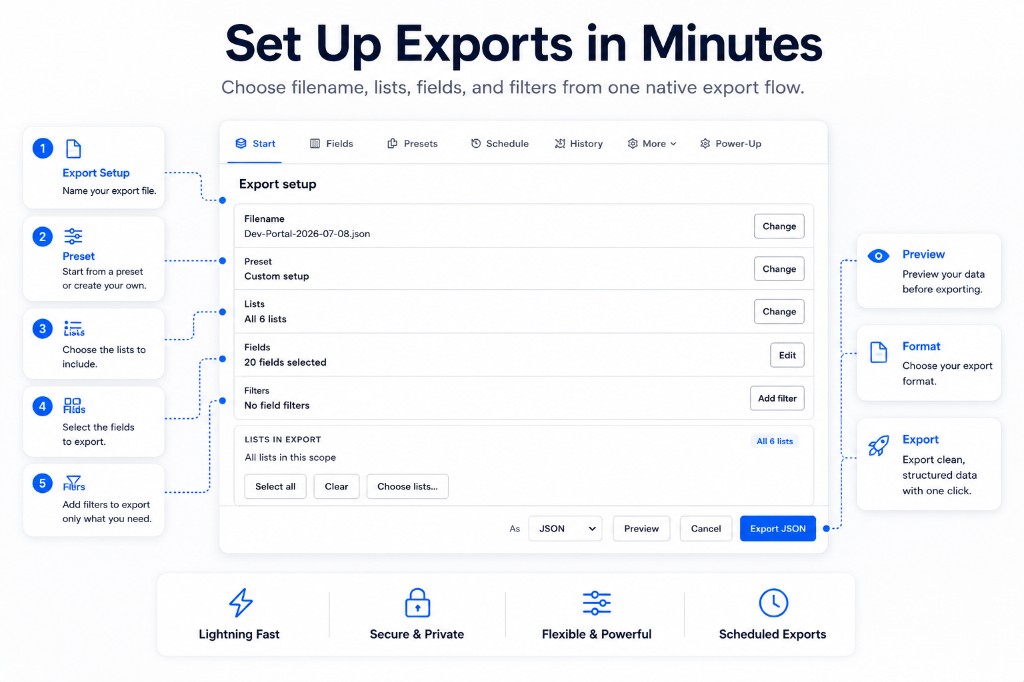
<p>Open Board Export+ from a <strong>board, list, or card</strong>. On the Start screen, confirm the source and give the file a recognizable name.</p>
<p><img decoding="async" loading="lazy" alt="Board Export+ Start screen for selecting lists, fields, filters, and an export format" src="https://board-export-docs.nikaj.dev/assets/images/export-setup-60aae0eb0a2cbc0e1a1b9039c151afde.png" width="1024" height="682" class="img_p74I"></p>
<p>Choose only the lists you need. A focused export is easier to read and produces less cleanup work than exporting an entire board by default.</p>
<h3 class="anchor anchorTargetStickyNavbar_jZnc" id="step-2-choose-and-order-the-fields">Step 2: Choose and order the fields<a href="https://board-export-docs.nikaj.dev/blog/export-trello-board-excel-csv-pdf-json#step-2-choose-and-order-the-fields" class="hash-link" aria-label="Direct link to Step 2: Choose and order the fields" title="Direct link to Step 2: Choose and order the fields" translate="no">​</a></h3>
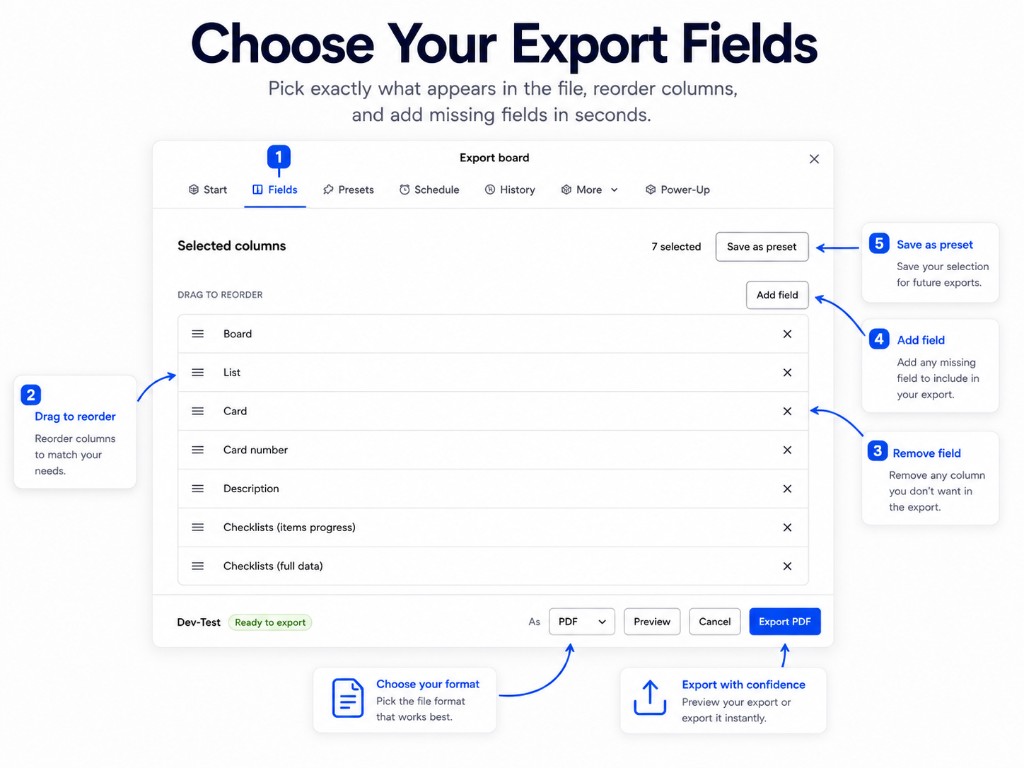
<p>Open <strong>Fields</strong> and select the columns or details that belong in the output. Depending on your workflow, that can include board and list names, card titles and descriptions, labels, members, start and due dates, checklist progress, custom fields, links, attachments metadata, comments, and activity.</p>
<p><img decoding="async" loading="lazy" alt="Board Export+ Fields screen for selecting and reordering Trello export columns" src="https://board-export-docs.nikaj.dev/assets/images/fields-ae73982ed18601e33fb4b2e86ec60e1d.png" width="1024" height="768" class="img_p74I"></p>
<p>Drag fields into the order your readers expect. For a concise status report, start with list, card, member, due date, and status. For a backup or audit, include the richer detail.</p>
<h3 class="anchor anchorTargetStickyNavbar_jZnc" id="step-3-add-filters">Step 3: Add filters<a href="https://board-export-docs.nikaj.dev/blog/export-trello-board-excel-csv-pdf-json#step-3-add-filters" class="hash-link" aria-label="Direct link to Step 3: Add filters" title="Direct link to Step 3: Add filters" translate="no">​</a></h3>
<p>Return to <strong>Start</strong> and narrow the cards if needed. For example, export only work assigned to a member, cards carrying a specific label, or items in the lists relevant to the report.</p>
<p>Filtering before export prevents recipients from working around irrelevant rows later.</p>
<h3 class="anchor anchorTargetStickyNavbar_jZnc" id="step-4-choose-xlsx-csv-pdf-or-json">Step 4: Choose XLSX, CSV, PDF, or JSON<a href="https://board-export-docs.nikaj.dev/blog/export-trello-board-excel-csv-pdf-json#step-4-choose-xlsx-csv-pdf-or-json" class="hash-link" aria-label="Direct link to Step 4: Choose XLSX, CSV, PDF, or JSON" title="Direct link to Step 4: Choose XLSX, CSV, PDF, or JSON" translate="no">​</a></h3>
<p>Select the format in the footer:</p>
<ul>
<li class="">Choose <strong>XLSX</strong> for a ready-to-use Excel workbook.</li>
<li class="">Choose <strong>CSV</strong> for a portable, flat table.</li>
<li class="">Choose <strong>PDF</strong> for a polished report.</li>
<li class="">Choose <strong>JSON</strong> for structured data, backup, or development.</li>
</ul>
<p>Board Export+ also supports PNG, DOCX, and ZIP for workflows that need an image, editable document, or packaged attachments.</p>
<h3 class="anchor anchorTargetStickyNavbar_jZnc" id="step-5-preview-before-exporting">Step 5: Preview before exporting<a href="https://board-export-docs.nikaj.dev/blog/export-trello-board-excel-csv-pdf-json#step-5-preview-before-exporting" class="hash-link" aria-label="Direct link to Step 5: Preview before exporting" title="Direct link to Step 5: Preview before exporting" translate="no">​</a></h3>
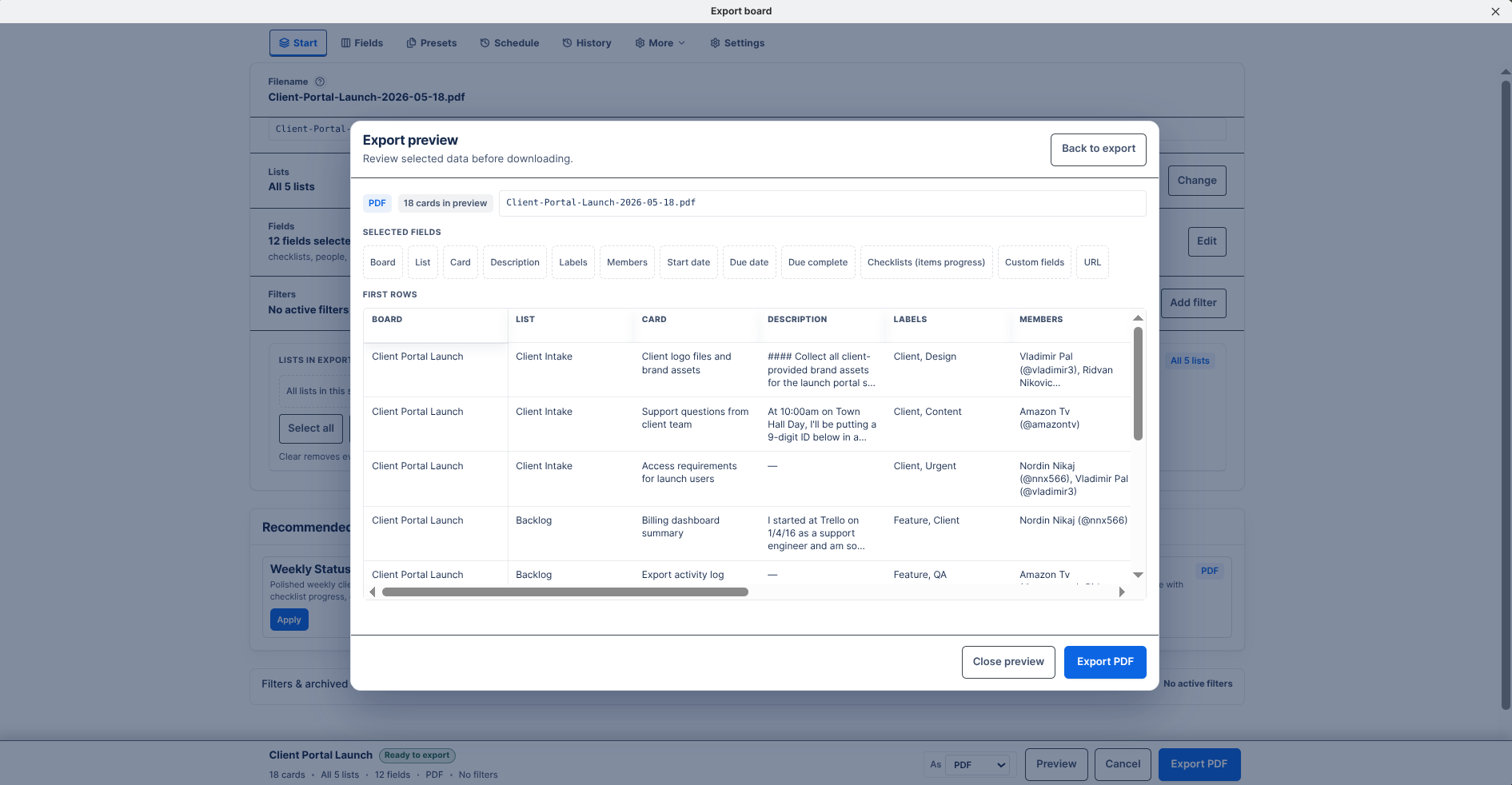
<p>Select <strong>Preview</strong> to verify the selected cards and fields. Check names, dates, list order, filters, and any report branding before generating the final file.</p>
<p><img decoding="async" loading="lazy" alt="Preview of Trello board data before export in Board Export+" src="https://board-export-docs.nikaj.dev/assets/images/preview-15987856ea45eb893fe2b739091c3b86.png" width="1891" height="982" class="img_p74I"></p>
<p>Then select <strong>Export</strong>. Smaller files download directly. Larger jobs can run in the background and appear in <strong>History</strong> when ready.</p>
<h3 class="anchor anchorTargetStickyNavbar_jZnc" id="step-6-save-the-setup-as-a-preset">Step 6: Save the setup as a preset<a href="https://board-export-docs.nikaj.dev/blog/export-trello-board-excel-csv-pdf-json#step-6-save-the-setup-as-a-preset" class="hash-link" aria-label="Direct link to Step 6: Save the setup as a preset" title="Direct link to Step 6: Save the setup as a preset" translate="no">​</a></h3>
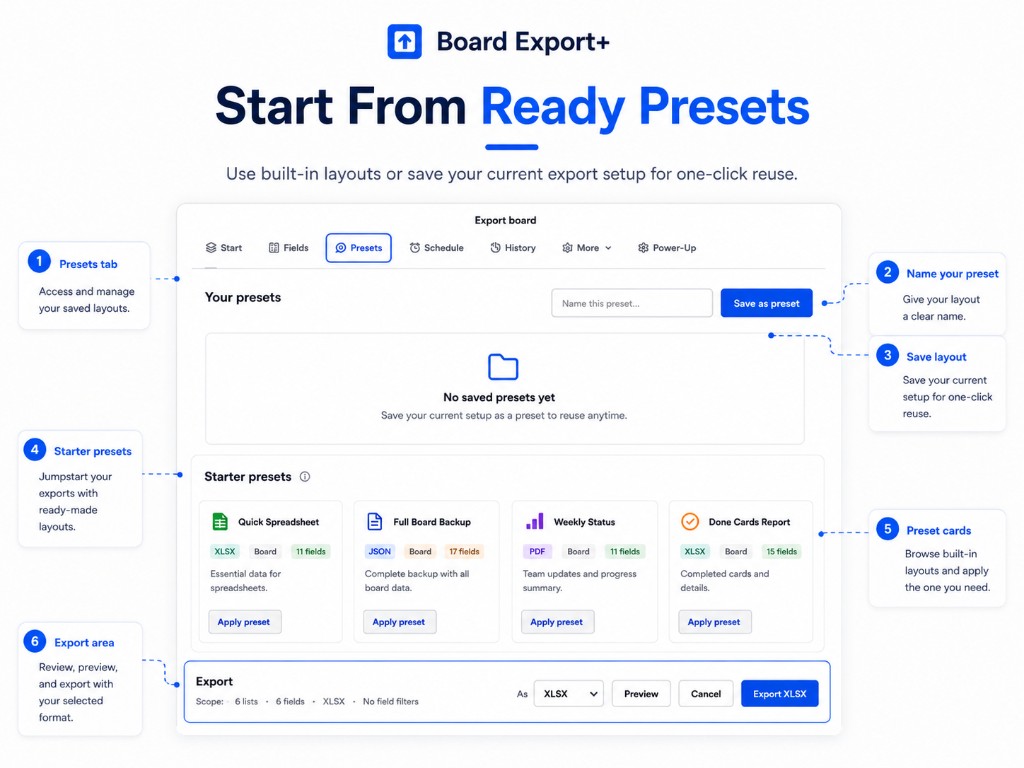
<p>If this is a report you will run again, save the configuration as a preset. Presets reduce errors because the scope, field order, and format do not have to be rebuilt each time.</p>
<p><img decoding="async" loading="lazy" alt="Board Export+ presets for reusable Trello export configurations" src="https://board-export-docs.nikaj.dev/assets/images/presets-78497cc0ac9c07bfe181ec5586fb6baa.png" width="1024" height="768" class="img_p74I"></p>
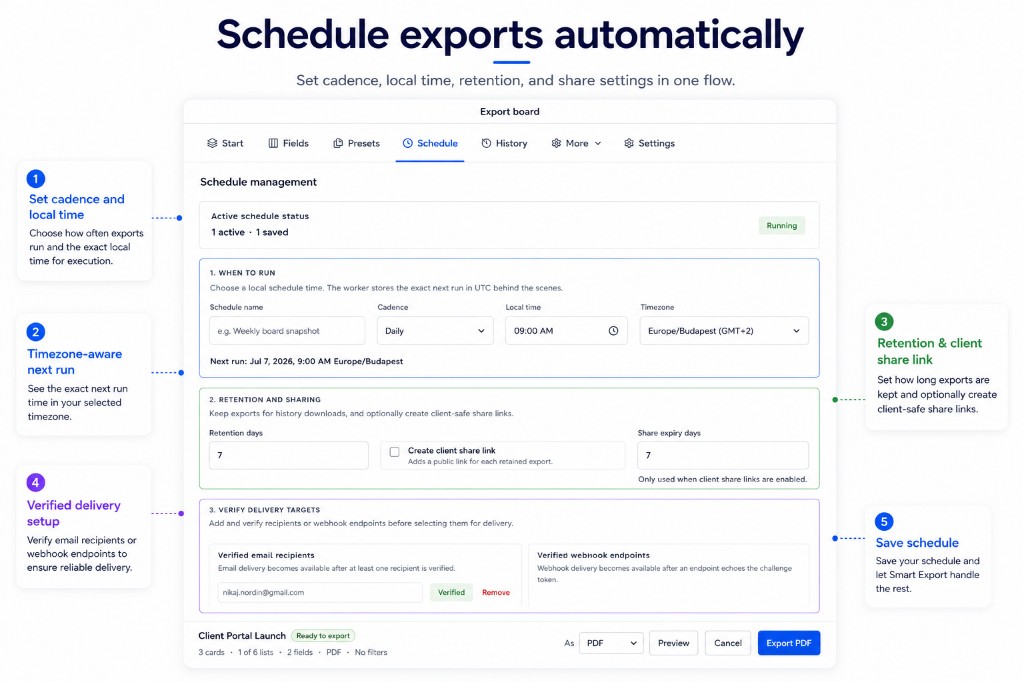
<h3 class="anchor anchorTargetStickyNavbar_jZnc" id="step-7-schedule-recurring-exports-when-needed">Step 7: Schedule recurring exports when needed<a href="https://board-export-docs.nikaj.dev/blog/export-trello-board-excel-csv-pdf-json#step-7-schedule-recurring-exports-when-needed" class="hash-link" aria-label="Direct link to Step 7: Schedule recurring exports when needed" title="Direct link to Step 7: Schedule recurring exports when needed" translate="no">​</a></h3>
<p>For weekly reports or regular backups, create a schedule, select the local run time, choose retention, and configure a verified email recipient or webhook endpoint.</p>
<p><img decoding="async" loading="lazy" alt="Scheduling recurring Trello board exports in Board Export+" src="https://board-export-docs.nikaj.dev/assets/images/schedule-005d2e22d3b99258667f844124f81ad7.png" width="1024" height="682" class="img_p74I"></p>
<p>Scheduled delivery is useful when the real goal is not “export this board once,” but “make sure this report arrives every Friday without somebody remembering to run it.”</p>
<h2 class="anchor anchorTargetStickyNavbar_jZnc" id="practical-export-recipes">Practical export recipes<a href="https://board-export-docs.nikaj.dev/blog/export-trello-board-excel-csv-pdf-json#practical-export-recipes" class="hash-link" aria-label="Direct link to Practical export recipes" title="Direct link to Practical export recipes" translate="no">​</a></h2>
<h3 class="anchor anchorTargetStickyNavbar_jZnc" id="weekly-project-status-in-excel">Weekly project status in Excel<a href="https://board-export-docs.nikaj.dev/blog/export-trello-board-excel-csv-pdf-json#weekly-project-status-in-excel" class="hash-link" aria-label="Direct link to Weekly project status in Excel" title="Direct link to Weekly project status in Excel" translate="no">​</a></h3>
<p>Select active lists, then include list, card, member, due date, completion state, labels, and card URL. Export as XLSX. This gives a project lead a workable spreadsheet without exposing every detail on the board.</p>
<h3 class="anchor anchorTargetStickyNavbar_jZnc" id="client-ready-progress-report-in-pdf">Client-ready progress report in PDF<a href="https://board-export-docs.nikaj.dev/blog/export-trello-board-excel-csv-pdf-json#client-ready-progress-report-in-pdf" class="hash-link" aria-label="Direct link to Client-ready progress report in PDF" title="Direct link to Client-ready progress report in PDF" translate="no">​</a></h3>
<p>Filter the board to client-visible work, include concise card descriptions and dates, add workspace branding, preview, then export as PDF. Review the file before sending because card descriptions may contain internal notes.</p>
<h3 class="anchor anchorTargetStickyNavbar_jZnc" id="structured-trello-backup-in-json">Structured Trello backup in JSON<a href="https://board-export-docs.nikaj.dev/blog/export-trello-board-excel-csv-pdf-json#structured-trello-backup-in-json" class="hash-link" aria-label="Direct link to Structured Trello backup in JSON" title="Direct link to Structured Trello backup in JSON" translate="no">​</a></h3>
<p>Include the broadest appropriate scope and fields, export as JSON, add a date to the filename, and store it according to your organization's retention policy. If actual attachment files are essential, use a ZIP-capable workflow rather than relying only on attachment URLs.</p>
<h3 class="anchor anchorTargetStickyNavbar_jZnc" id="lightweight-import-file-in-csv">Lightweight import file in CSV<a href="https://board-export-docs.nikaj.dev/blog/export-trello-board-excel-csv-pdf-json#lightweight-import-file-in-csv" class="hash-link" aria-label="Direct link to Lightweight import file in CSV" title="Direct link to Lightweight import file in CSV" translate="no">​</a></h3>
<p>Choose only fields supported by the destination system, place its required identifiers first, and export as CSV. Open the file once to verify delimiters, dates, and characters before importing it elsewhere.</p>
<h2 class="anchor anchorTargetStickyNavbar_jZnc" id="export-security-and-data-quality-checklist">Export security and data quality checklist<a href="https://board-export-docs.nikaj.dev/blog/export-trello-board-excel-csv-pdf-json#export-security-and-data-quality-checklist" class="hash-link" aria-label="Direct link to Export security and data quality checklist" title="Direct link to Export security and data quality checklist" translate="no">​</a></h2>
<p>An export can contain more information than its recipient needs. Before sharing it:</p>
<ul>
<li class="">Remove unnecessary member, comment, activity, and attachment fields.</li>
<li class="">Check whether archived or filtered cards should be included.</li>
<li class="">Confirm dates and timezone-dependent values.</li>
<li class="">Treat download and share links as sensitive.</li>
<li class="">Store backups according to your organization's retention rules.</li>
<li class="">Open the final file in its target application before distributing it.</li>
</ul>
<p>For CSV files, also remember that values beginning with spreadsheet formula characters can be dangerous if an exporter does not neutralize them. Board Export+ applies spreadsheet-safety handling to generated tabular output.</p>
<h2 class="anchor anchorTargetStickyNavbar_jZnc" id="frequently-asked-questions">Frequently asked questions<a href="https://board-export-docs.nikaj.dev/blog/export-trello-board-excel-csv-pdf-json#frequently-asked-questions" class="hash-link" aria-label="Direct link to Frequently asked questions" title="Direct link to Frequently asked questions" translate="no">​</a></h2>
<h3 class="anchor anchorTargetStickyNavbar_jZnc" id="can-i-export-a-trello-board-to-excel">Can I export a Trello board to Excel?<a href="https://board-export-docs.nikaj.dev/blog/export-trello-board-excel-csv-pdf-json#can-i-export-a-trello-board-to-excel" class="hash-link" aria-label="Direct link to Can I export a Trello board to Excel?" title="Direct link to Can I export a Trello board to Excel?" translate="no">​</a></h3>
<p>Yes. Export an XLSX file with Board Export+, or export CSV and open it in Microsoft Excel. Native Trello CSV export is available for boards in Premium Workspaces.</p>
<h3 class="anchor anchorTargetStickyNavbar_jZnc" id="can-i-export-a-trello-board-to-pdf">Can I export a Trello board to PDF?<a href="https://board-export-docs.nikaj.dev/blog/export-trello-board-excel-csv-pdf-json#can-i-export-a-trello-board-to-pdf" class="hash-link" aria-label="Direct link to Can I export a Trello board to PDF?" title="Direct link to Can I export a Trello board to PDF?" translate="no">​</a></h3>
<p>Yes. Board Export+ creates formatted PDF reports from a Trello board, list, or card. Trello also offers limited browser printing, but that is not the same as a configurable data export.</p>
<h3 class="anchor anchorTargetStickyNavbar_jZnc" id="can-i-export-trello-to-csv-for-free">Can I export Trello to CSV for free?<a href="https://board-export-docs.nikaj.dev/blog/export-trello-board-excel-csv-pdf-json#can-i-export-trello-to-csv-for-free" class="hash-link" aria-label="Direct link to Can I export Trello to CSV for free?" title="Direct link to Can I export Trello to CSV for free?" translate="no">​</a></h3>
<p>Board Export+ supports manual CSV and JSON exports on its Free plan. Trello's native per-board CSV option requires the board to belong to a Premium Workspace; raw JSON is available to all board members.</p>
<h3 class="anchor anchorTargetStickyNavbar_jZnc" id="does-trello-export-comments">Does Trello export comments?<a href="https://board-export-docs.nikaj.dev/blog/export-trello-board-excel-csv-pdf-json#does-trello-export-comments" class="hash-link" aria-label="Direct link to Does Trello export comments?" title="Direct link to Does Trello export comments?" translate="no">​</a></h3>
<p>Native Trello board JSON includes the 1,000 most recent board actions, including comments. Native CSV does not include comments. Board Export+ can include comments when that field is selected.</p>
<h3 class="anchor anchorTargetStickyNavbar_jZnc" id="can-i-export-archived-trello-cards">Can I export archived Trello cards?<a href="https://board-export-docs.nikaj.dev/blog/export-trello-board-excel-csv-pdf-json#can-i-export-archived-trello-cards" class="hash-link" aria-label="Direct link to Can I export archived Trello cards?" title="Direct link to Can I export archived Trello cards?" translate="no">​</a></h3>
<p>Atlassian says native CSV normally contains only unarchived cards. Its documented workaround is to append <code>.csv</code> to the board URL to download both open and archived cards. With Board Export+, the export contents depend on the scope and filters you select.</p>
<h3 class="anchor anchorTargetStickyNavbar_jZnc" id="can-i-import-a-trello-json-or-csv-export-back-into-trello">Can I import a Trello JSON or CSV export back into Trello?<a href="https://board-export-docs.nikaj.dev/blog/export-trello-board-excel-csv-pdf-json#can-i-import-a-trello-json-or-csv-export-back-into-trello" class="hash-link" aria-label="Direct link to Can I import a Trello JSON or CSV export back into Trello?" title="Direct link to Can I import a Trello JSON or CSV export back into Trello?" translate="no">​</a></h3>
<p>Not as a native board restore. Atlassian states that its JSON and CSV exports cannot currently be imported to recreate a Trello board. Treat an export as a report or data archive unless you have a separate migration process.</p>
<h3 class="anchor anchorTargetStickyNavbar_jZnc" id="which-trello-export-format-is-best-for-a-backup">Which Trello export format is best for a backup?<a href="https://board-export-docs.nikaj.dev/blog/export-trello-board-excel-csv-pdf-json#which-trello-export-format-is-best-for-a-backup" class="hash-link" aria-label="Direct link to Which Trello export format is best for a backup?" title="Direct link to Which Trello export format is best for a backup?" translate="no">​</a></h3>
<p>JSON is generally the best choice for a structured data archive. Choose ZIP when you also need attachment files, and use CSV or XLSX when people need to inspect the data in a spreadsheet.</p>
<h3 class="anchor anchorTargetStickyNavbar_jZnc" id="how-often-should-i-export-a-trello-board">How often should I export a Trello board?<a href="https://board-export-docs.nikaj.dev/blog/export-trello-board-excel-csv-pdf-json#how-often-should-i-export-a-trello-board" class="hash-link" aria-label="Direct link to How often should I export a Trello board?" title="Direct link to How often should I export a Trello board?" translate="no">​</a></h3>
<p>Match the schedule to how quickly the board changes and how costly lost history would be. A weekly export is often enough for reporting; a business-critical operational board may justify daily exports.</p>
<h2 class="anchor anchorTargetStickyNavbar_jZnc" id="create-the-export-you-actually-need">Create the export you actually need<a href="https://board-export-docs.nikaj.dev/blog/export-trello-board-excel-csv-pdf-json#create-the-export-you-actually-need" class="hash-link" aria-label="Direct link to Create the export you actually need" title="Direct link to Create the export you actually need" translate="no">​</a></h2>
<p>Native Trello export is a good starting point for raw JSON or Premium CSV. Board Export+ is built for the next step: selecting the exact data, choosing the right format, previewing the result, reusing presets, and automating delivery.</p>
<p><strong>Ready to turn your Trello board into Excel, CSV, PDF, or JSON?</strong></p>
<p><a class="" href="https://board-export-docs.nikaj.dev/docs/power-up-guide">Open the Board Export+ visual guide →</a></p>
<p>You can start with manual CSV and JSON exports, then use the Pro trial when you need XLSX, PDF, reusable reporting, schedules, email delivery, or webhooks.</p>]]></content>
        <author>
            <name>Board Export+ Team</name>
            <uri>https://board-export-docs.nikaj.dev</uri>
        </author>
        <category label="Trello" term="Trello"/>
        <category label="export" term="export"/>
        <category label="Excel" term="Excel"/>
        <category label="CSV" term="CSV"/>
        <category label="PDF" term="PDF"/>
        <category label="JSON" term="JSON"/>
        <category label="backup" term="backup"/>
    </entry>
</feed>